

I recently connected two U.S. servers to Codex remote control. For me, this turned out to be a pretty meaningful change.
Before this, my server maintenance workflow was basically fixed: open my MacBook Pro, SSH from the laptop into a specific server, check logs, update configs, restart services. That worked, but it had one obvious condition: the laptop had to be with me.
Then I started thinking differently: what if a server itself could become the operations entry point?
This is not a complete tutorial. It is closer to a record of how I set up my own workflow. Everyone’s servers, accounts, network environment, and risk boundaries are different, so copying every detail is not useful. But the direction is reusable: keep Codex running on a trusted server, then let that server connect to the rest of the fleet.
The Original Maintenance Model
The original structure was simple: my MacBook Pro connected to every server.
Early model: local machine connects to the whole fleet
This setup is simple, but the maintenance entry point is tightly coupled to my MacBook Pro.
When I was at my desk, this was perfectly fine. The problem was that once I was away from the laptop, or the laptop was not running, most maintenance work became hard to continue.
Of course, I could use a mobile SSH client. But the experience is not good enough. It works for checking status, but once I want an AI agent to analyze logs, edit configs, compare docs, or preserve context, it becomes awkward. AI agents are at their best when they can read files, run commands, and keep the working context in one place.
So the first step was to turn one U.S. server into an operations entry point.
Phase one: one server becomes the persistent ops entry point
After that, I could open Codex on my phone and enter U.S. Server A directly. That server already had the SSH keys, server notes, and working directories it needed to continue connecting to the rest of the fleet.
This changed the feeling of maintenance quite a bit. It went from “I must open my MacBook Pro” to “I just need to open my phone.”
Why I Added a Second U.S. Server
Having only one entry server still has a problem. If the Codex remote process on that machine goes down while I am away, my phone cannot get back in.
So I connected a second U.S. server to Codex as well. The structure became this:
Phase two: two entries with mutual fallback
Both U.S. servers are now in my remote list on the phone. In daily use, I can enter either one. If the Codex process on one server goes down, the other one still has a chance to bring it back.
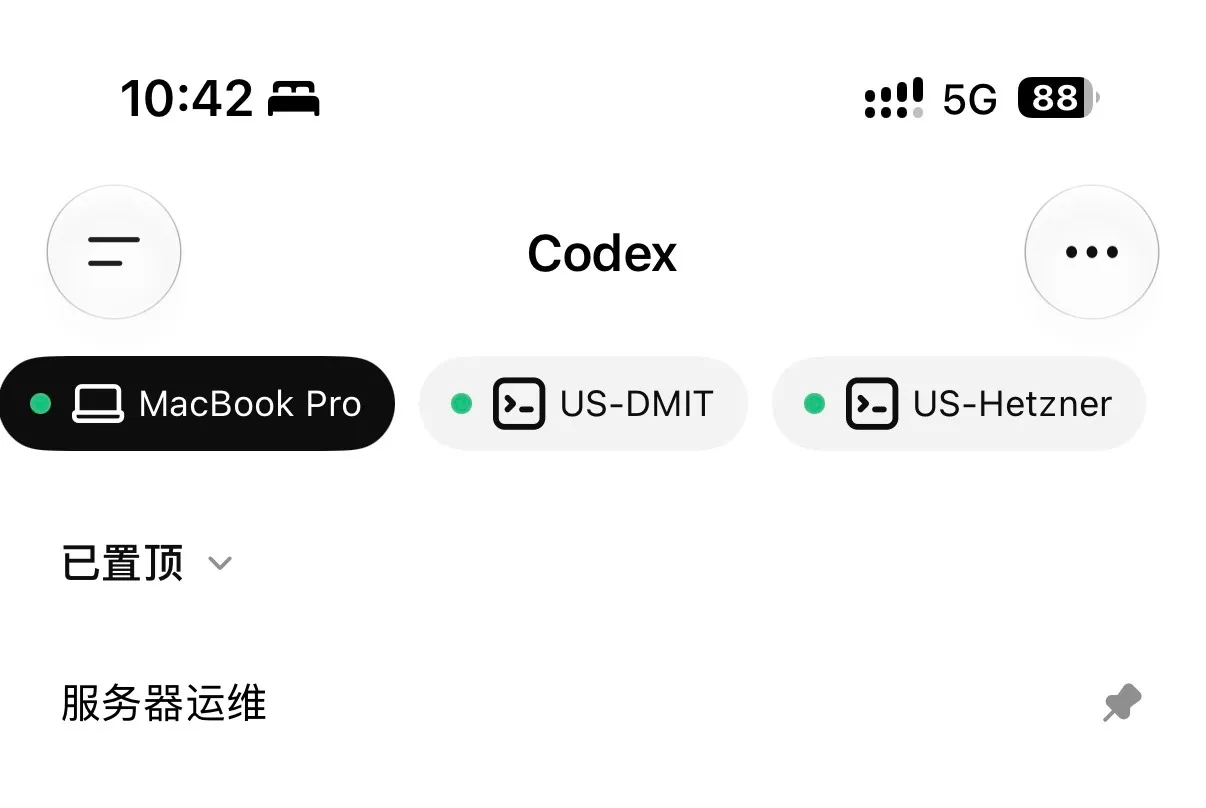
On my phone, I can now see MacBook Pro, US-DMIT, and US-Hetzner at the same time. This is no longer just “remote access to one server.” It is a set of always-available operations entries.
The key point is not simply “adding one more server.” The key point is making the entry point redundant. For server operations, the worst failure is not always a broken service. Sometimes the real problem is losing the path you need in order to fix it.
MacBook Pro as the Auth Source
One important detail: I switch Codex accounts.
If every server has to be manually logged in, switching accounts becomes painful. The better model is to treat the MacBook Pro as the auth source. I do daily login and account switching on the MacBook Pro first, then sync only the necessary auth files to the servers.
Codex stores local login state under the local config directory, such as ~/.codex/auth.json. This kind of file is a credential. It should not be treated like ordinary configuration.
My sync flow looks roughly like this:
Auth sync: switch locally, let servers inherit the session
I do not copy the entire ~/.codex directory. It contains logs, history, local databases, and cache files. There is no need to sync all of that to a server. Usually, the only files worth syncing are the auth file and a small amount of configuration that really needs to stay consistent, such as config.toml.
I think of auth sync as a separate operation: switch accounts locally, then let the servers inherit that login state. When I change Codex accounts later, I only need to handle it once on the MacBook Pro, then push the auth JSON to the two entry servers.
This is also the highest-risk step. auth.json should not go into Git, should not be placed in public directories, should not be written into docs, and should not be captured by careless backups. On the server, file permissions should also be restricted so only the user running Codex can read it.
Installation Source Matters
Codex updates quickly, so I prefer to keep the installation source consistent.
As of 2026-06, the official Codex CLI documentation recommends the standalone installer for macOS and Linux:
curl -fsSL https://chatgpt.com/codex/install.sh | shFor automation, the official docs also describe non-interactive installation. To upgrade the standalone version, just run the installer again.
I would not casually install a random npm package found through search on a server. Codex CLI does have an official npm package, @openai/codex, but if you are just searching by package name, it is easy to install from the wrong source or end up with a version you did not intend to run. For a long-running remote entry point, I prefer to follow the current official installation path. It also makes automated upgrades simpler.
A Server Runbook Written for AI
Once Codex is running on a server, another thing becomes important: give it a server runbook.
This is not a README for humans. It is operational context for an AI agent. At minimum, it should include:
- Which server this is and what role it plays.
- Other server IPs, purposes, and SSH methods.
- Where SSH keys live and what file permissions they should have.
- Which services can be inspected freely, and which services should not be restarted casually.
- Which machines run core business services and require extra caution.
I ran into a naming problem myself. In a proxy-related conversation, “U.S. server 1” might mean DMIT. But in daily operations, “U.S. server 1” might mean the stronger Hetzner machine that runs core websites. Humans understand context. AI may not.
So in the runbook, I try to avoid casual nicknames and write IPs, domains, roles, and boundaries clearly. If a server runs the main website, the runbook should explicitly say: do not restart website-related services unless the user asks for it directly.
The clearer this file is, the steadier AI-assisted operations become.
Permission Mode
My own habit is to set Codex to “approve for me” on trusted servers. That way, when I am doing maintenance from my phone, I do not need to approve every single command manually.
This is convenient, but it only belongs on your own trusted servers. Once permissions are opened up, Codex can really perform many actions. It can read logs, but it can also delete files. It can restart services, but it can also change configs.
So the prerequisites matter: the servers are mine, the SSH keys are mine, auth files only move between trusted machines, and the runbooks clearly describe which things should not be touched casually.
For team machines, client machines, or production database machines, I would not enable this mode by default.
How I Think About Watchdog
The last piece is Watchdog.
At first, I considered letting each server check its own Codex process and restart it if needed. But there is a problem with that model: if its own upgrade fails, or the process management script breaks, it may no longer be able to “check itself” at all.
So I prefer two servers checking each other.
Watchdog: check each other, not only yourself
The Watchdog does not need to be complex:
- Check whether the Codex remote process exists on the other server.
- Check whether Codex needs an upgrade.
- If upgraded, restart the remote process.
- After restart, confirm the remote entry is back.
- If something fails, leave logs so I can take over manually.
The upgrade flow is the most important part. Codex updates frequently, so checking once per day and upgrading automatically when a new version appears feels natural. But if a machine only upgrades itself, it may finish the upgrade and fail to bring the remote process back. From the phone, that machine is then unreachable.
With two servers backing each other up, the risk is much smaller. A upgrades B, and B upgrades A. Even if one side fails, the other side is still there.
What This Setup Is Good For
For me, this setup is best for lightweight daily operations.
For example: checking why a server is using too much memory, seeing whether a Docker container is running, verifying Nginx config, restarting a non-core service, reading scheduled job logs, or asking AI to reason through a migration based on project docs.
These are things that used to require sitting in front of the laptop. Now, many of them can be handled from the phone.
But it is not suitable for everything. Database migrations, data deletion, core service restarts, certificate changes, and major DNS changes are still actions where I want the AI to analyze first, propose a plan, and then wait for explicit confirmation before doing anything.
Remote control is not about turning servers into self-driving systems. It is about keeping the entry point available.
My Current Structure
To summarize, this is what the structure looks like now:
Final structure: auth source, dual entries, and managed servers
The MacBook Pro is the auth source. The two U.S. servers are persistent entry points. The rest of the fleet is maintained through them. The two U.S. servers check each other so at least one entry point remains usable.
After finishing this setup, the biggest change is that server maintenance is no longer tied to one local computer.
Before, I had to get back to the MacBook Pro first, then connect to servers. Now I can open my phone and enter an operations environment that already has keys, docs, and context prepared. For someone who often switches between places and devices, that difference is very real.
If you also run a few personal servers and already use Codex or similar AI agents for operations, I think this direction is worth trying. Start with one non-core server. Do not hand over maximum permissions on day one. Once auth sync, runbooks, and Watchdog are all working smoothly, expand the scope gradually.